Run Assessments Within HUB
This article explains how to run assessments from within the ERP Health HUB platfo.
Go to {facility}.erphealth.com
1. Introduction
You will learn the step-by-step process to select, confirm, and start assessments for patients.
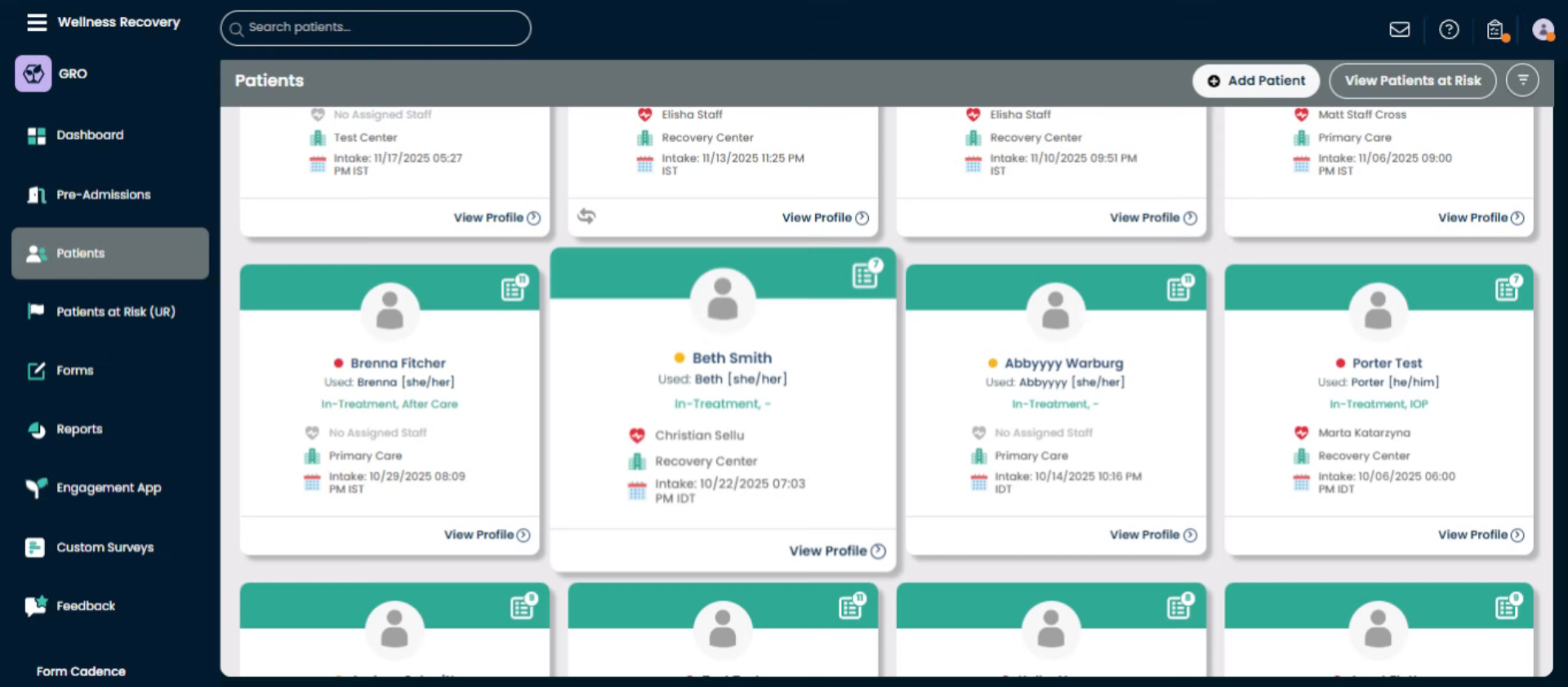
2. Navigate to Patients Section
Click the Patients section to access patient-related tasks and information.
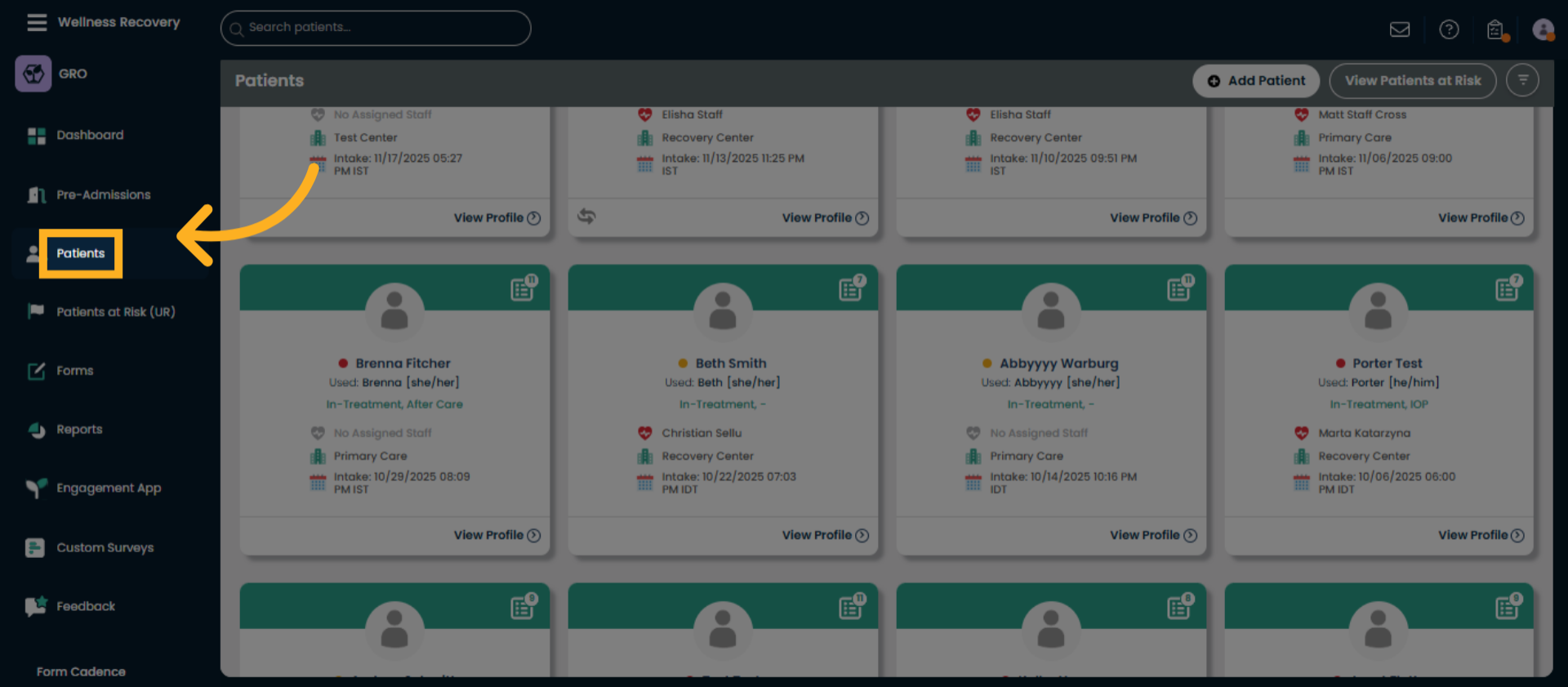
3. Open Patients Dashboard
Click the Patient's Box view patient's dashboard.
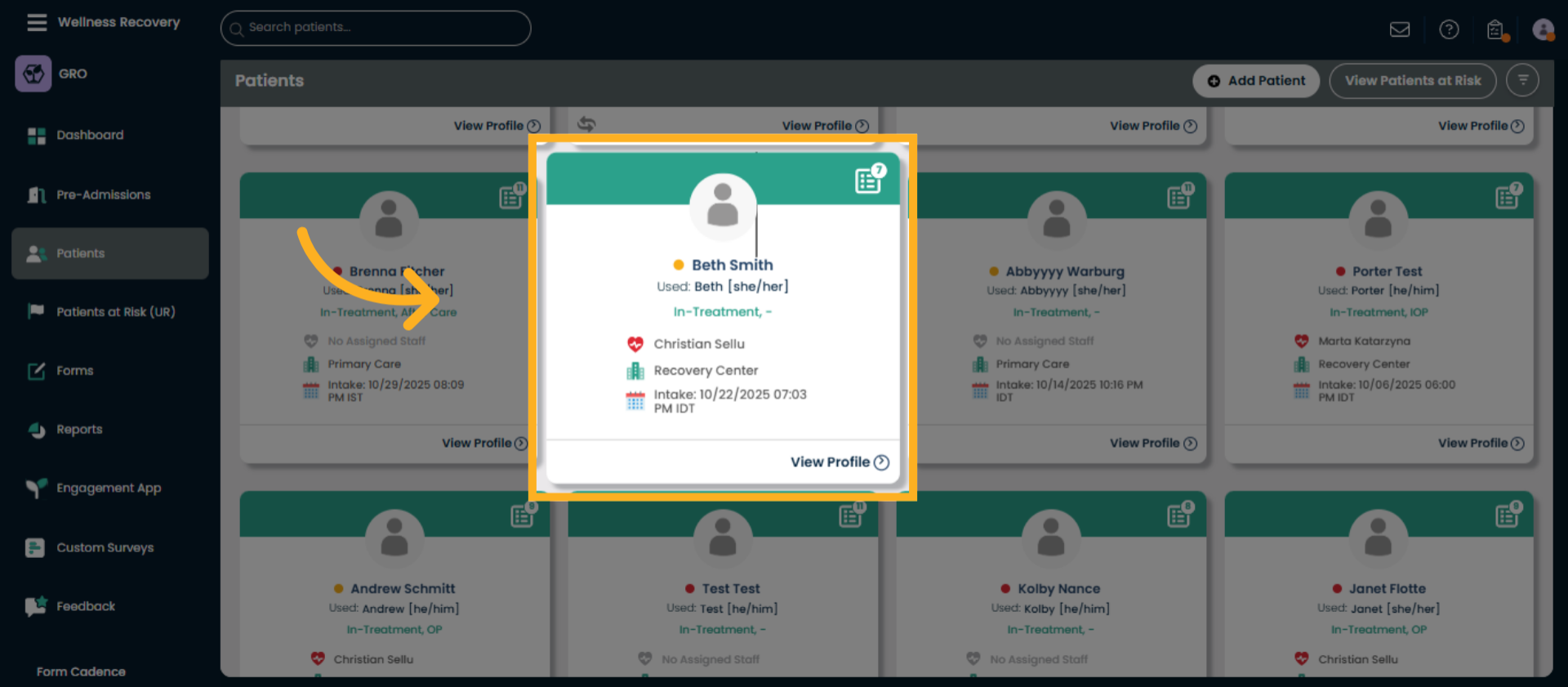
4. Access Add or Remove Options
If the assessment is not already assigned, you can add a new assessment by clicking on Add/Remove.
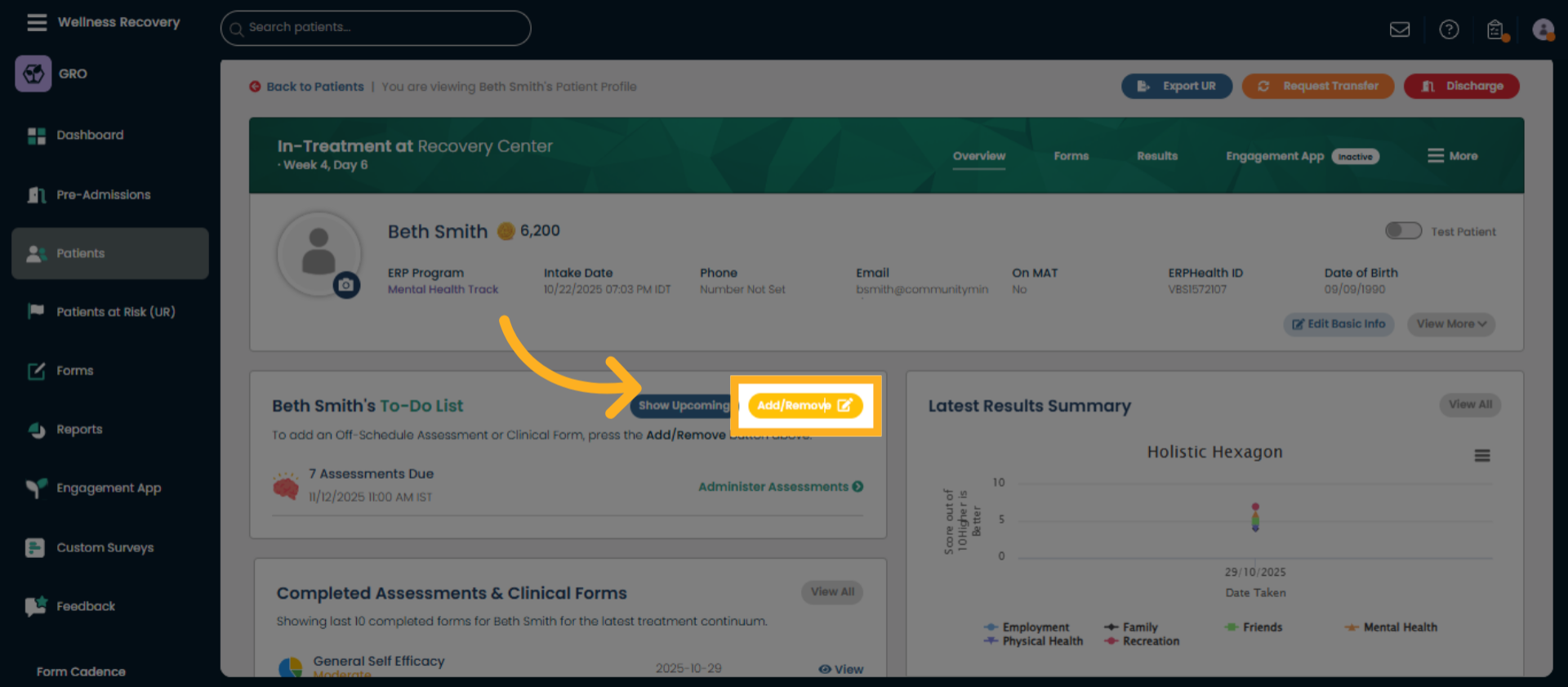
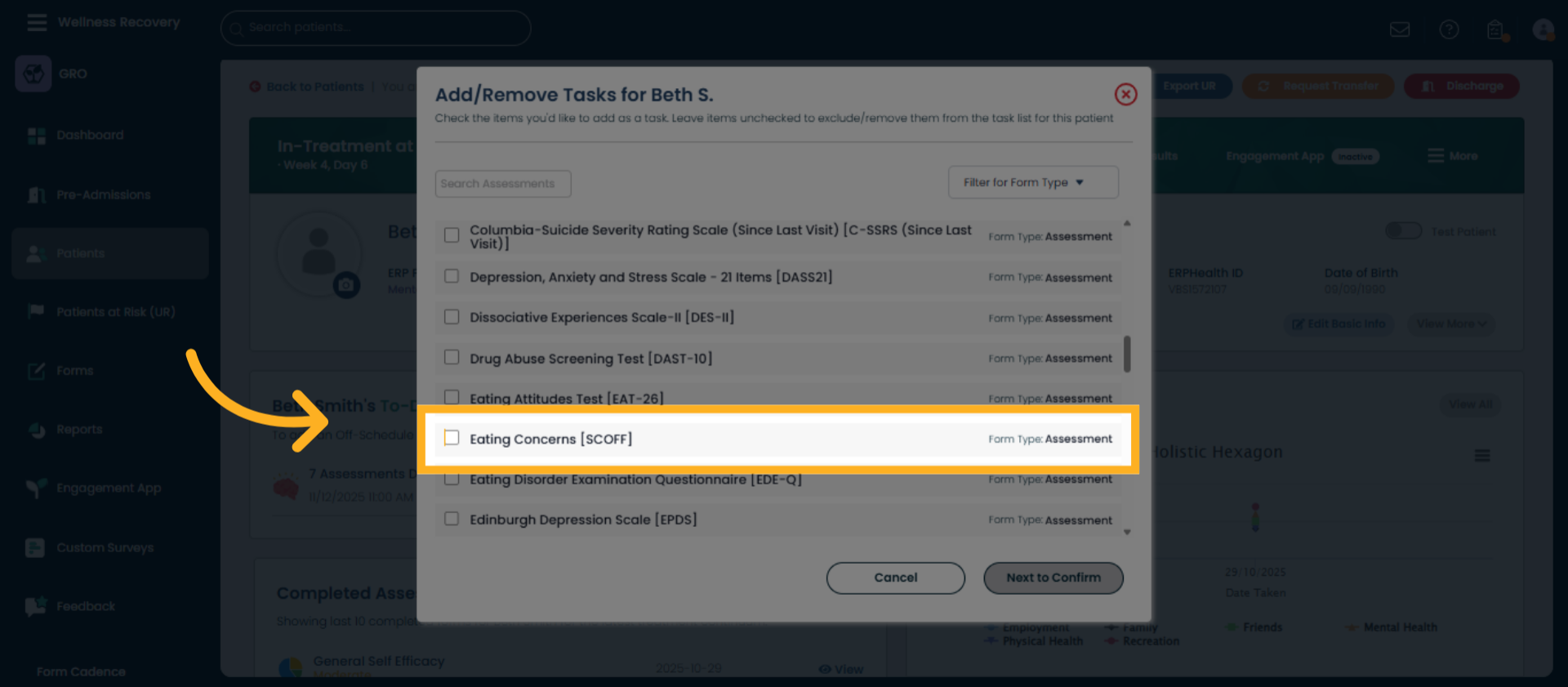
5. Select Assessment Form
Choose the assessment you wish to add. In this example we have chosen the Eating Concerns [SCOFF] assessment form.
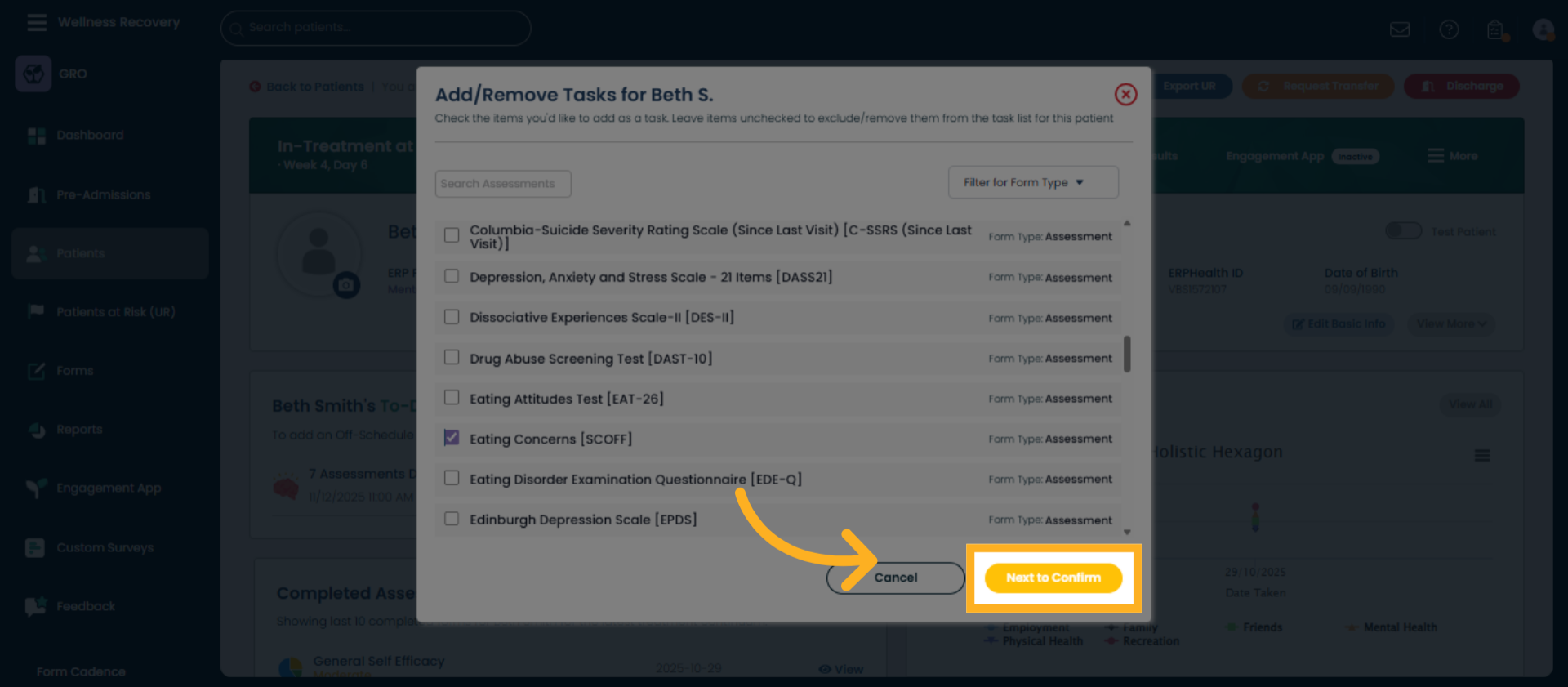
6. Proceed to Confirmation
Click Next to Confirm to review the selected assessment before proceeding.
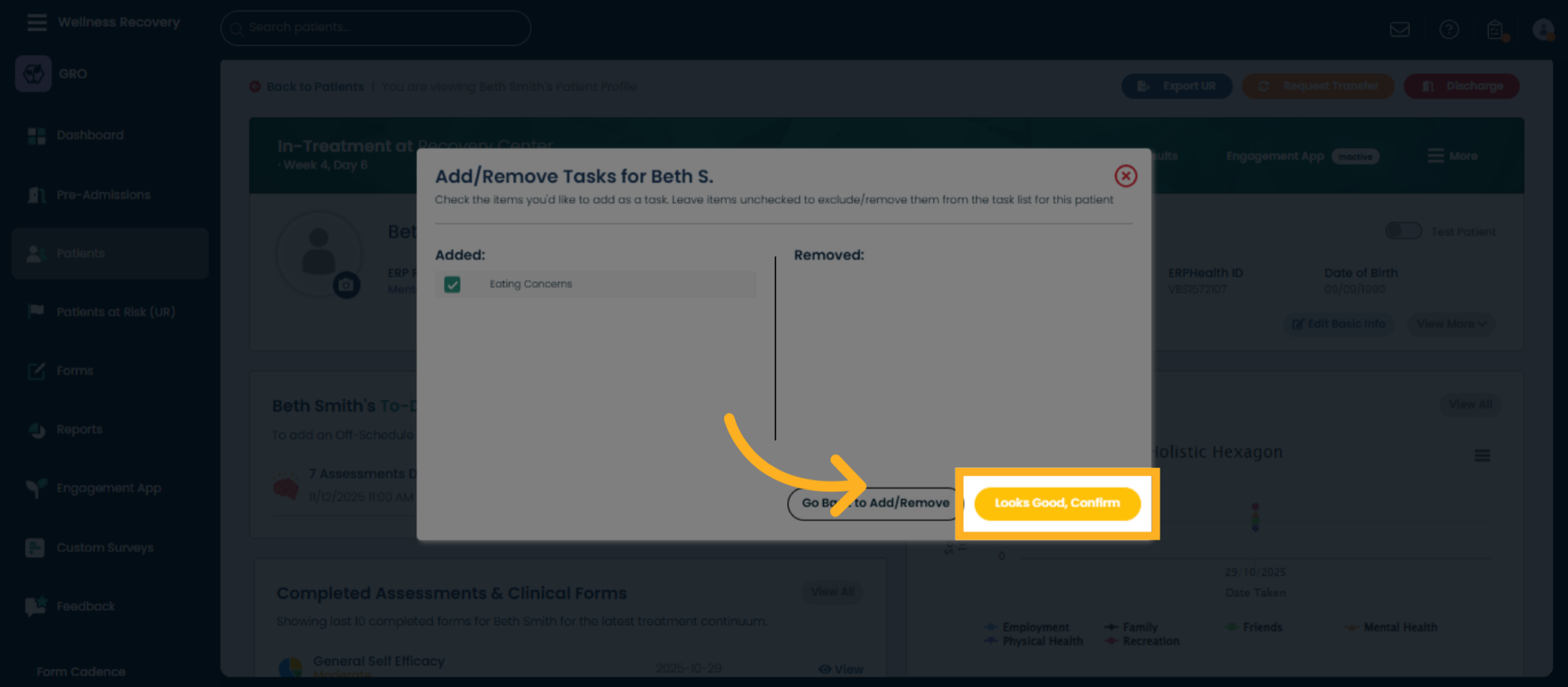
7. Confirm Assessment Selection
Click Looks Good, Confirm to finalize the assessment choice.
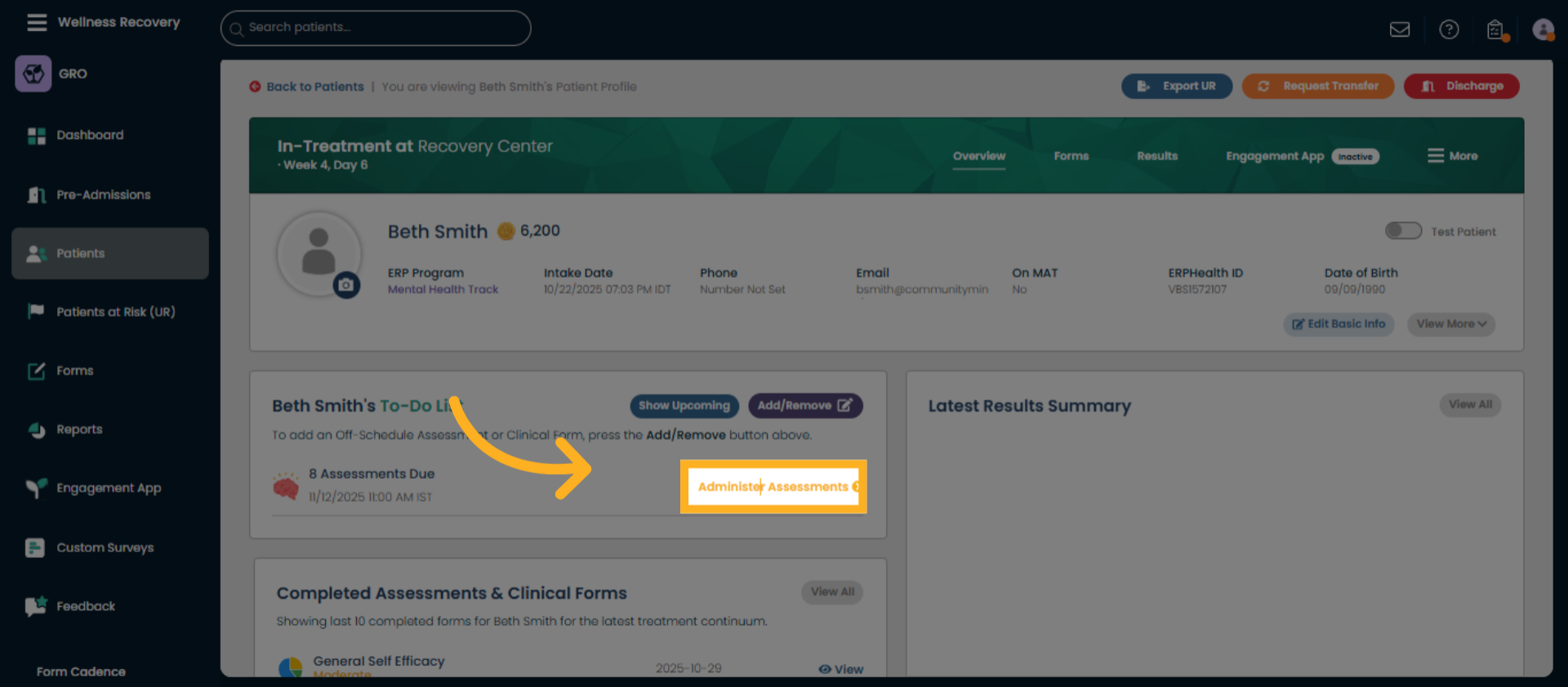
8. Open Administer Assessments
Click Administer Assessments to prepare for starting the selected assessments.
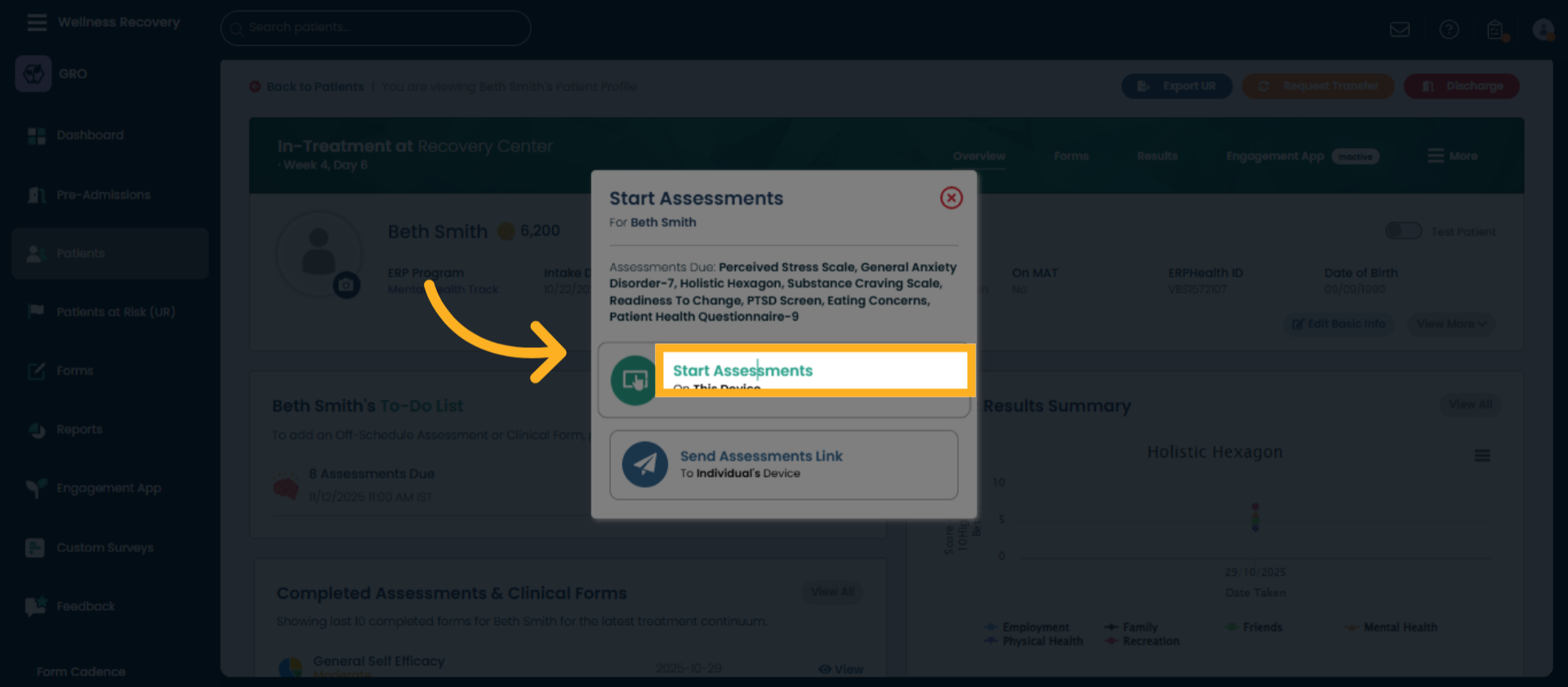
9. Initiate Assessment Start
Click Start Assessments to begin the assessment process for the patient.
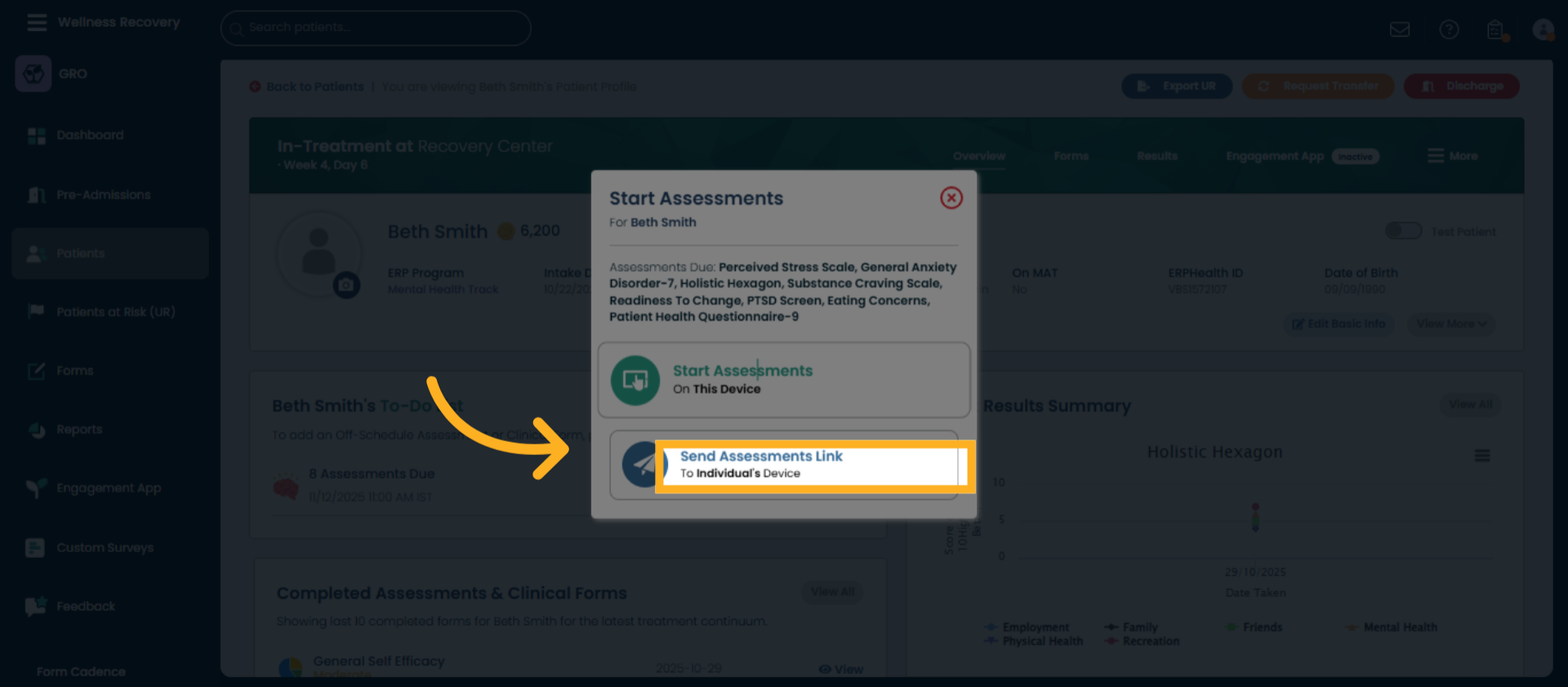
10. Send Assessment to Email
Alternatively click Send Assessments Link to email the link the patient's device, where they can click the link on their device and run the assessment from there.
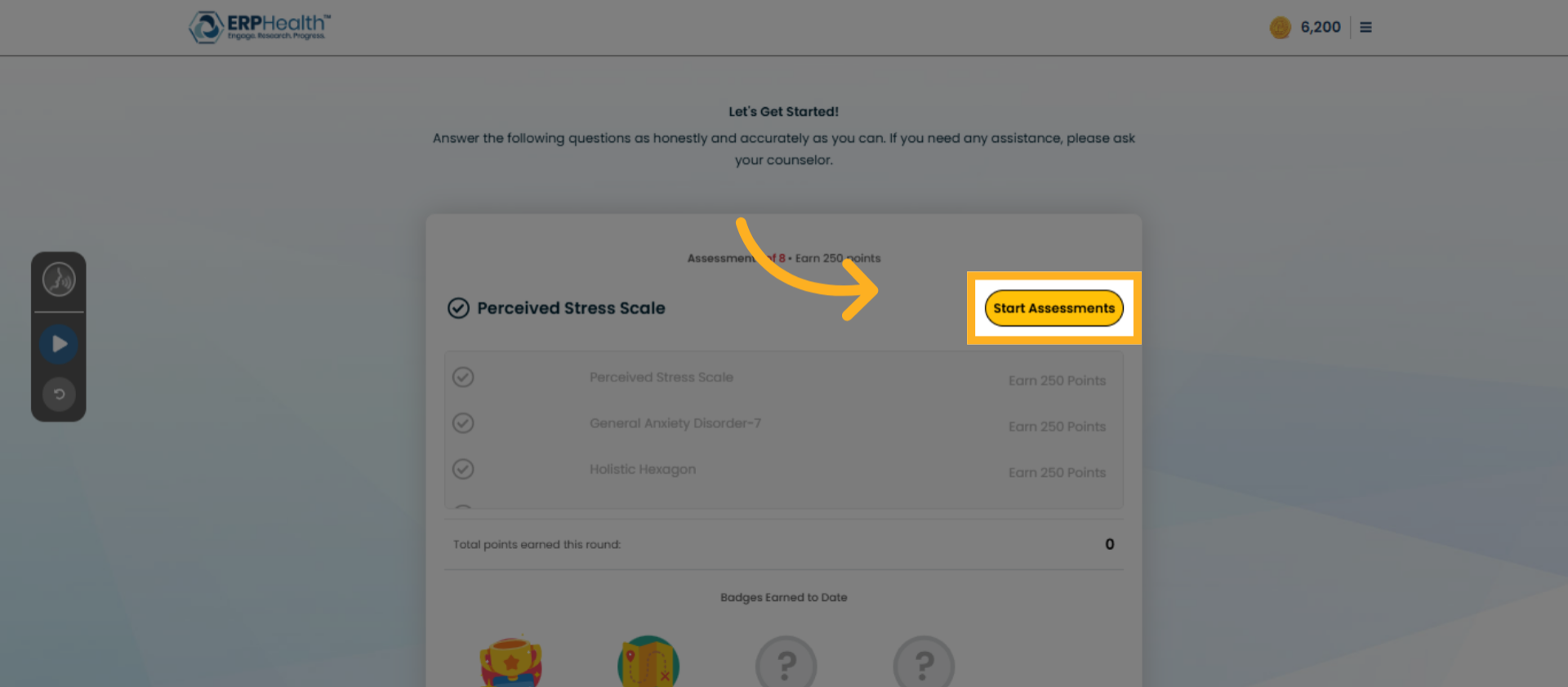
11. Confirm Assessment Start
Click Start Assessments again to confirm and officially start the assessments.
You have successfully learned how to run assessments within the ERP Health HUB by selecting, confirming, and starting the appropriate assessment forms. For more information, refer to related articles on patient management and assessment administration.
Was this article helpful?
That’s Great!
Thank you for your feedback
Sorry! We couldn't be helpful
Thank you for your feedback
Feedback sent
We appreciate your effort and will try to fix the article